Guide
Units: mm vs Meters for OBJ to STL
Updated · Mesh OBJ to STL only
STL has no embedded units. Learn why models arrive 1000× too large or small, check the bounding box, and convert with mm selected in your browser.
Stop a 1000× scale mistake before you slice
Decide what one unit in the OBJ means, scale into millimeters, and confirm the bounding box before you download an STL.
Step 1
Name the OBJ unit
Decide whether one coordinate unit in the OBJ is a millimeter, a centimeter, a meter, or an inch. The file will not label this for you.
Step 2
Set that unit in the converter
Choose the matching option. Millimeters is the default and multiplies by 1. Centimeters multiply by 10, meters by 1000, inches by 25.4.
Step 3
Read the bounding box in millimeters
Compare the size to a dimension you know. A 40 mm part should not read as 40 meters or as 0.04 mm.
Step 4
Download only after the size looks right
Save the binary STL and confirm the same millimeters in the slicer. Do not stack a second 1000% scale on top.
STL is a list of triangles with coordinates and a face normal. It has no unit field. The number 10 might be 10 millimeters or 10 meters. Programs fill that silence with a habit. FDM slicers almost always treat one unit as one millimeter. Modeling apps often do not. The gap between those habits is how a keychain becomes a part the size of a room, or a room-sized prop becomes a speck on the bed.
The 1000× case
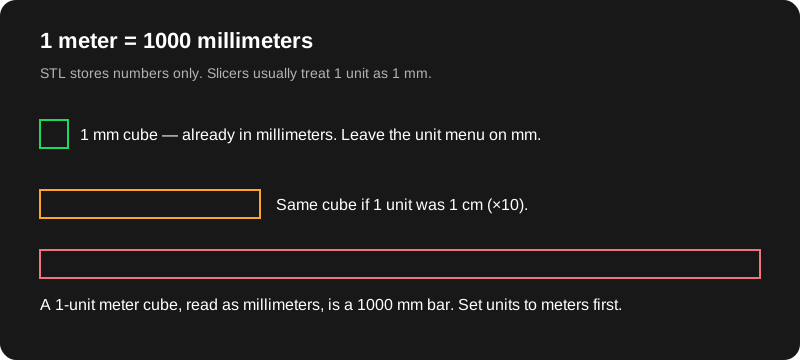
A meter is 1000 millimeters. If an OBJ stores a 0.08 meter figurine as the number 0.08, and you leave the converter on millimeters, the STL still says 0.08. The slicer prints 0.08 mm. You will not find it on the plate. The inverse is the file people remember: an object modeled as “1 unit = 1 meter” but exported as the number 1, then read as 1 mm, is tiny; an object whose coordinates were already in the thousands because someone exported raw meter-scene numbers without scaling is enormous.
If the OBJ was truly in meters, set the unit menu to meters. The converter multiplies every coordinate by 1000 before it writes the STL. A 0.08 model unit becomes 80 mm. The bounding box should then read about 80 mm on the axis you expect. That box is the whole point of the control. A unit menu without a measurement is a guess you cannot see.
Centimeters are the 10× cousin. An architectural mesh in centimeters, left on millimeters, prints at one tenth of the intended size. Inches multiply by 25.4. A 2 inch part left on millimeters becomes a 2 mm part. None of these factors are stored in the STL afterward. They are baked into the coordinates. If you change your mind, convert again. Do not keep the wrong file and “remember” the scale in your head.
Worked example: the 10-unit sample cube
The built-in sample is a 10×10×10 cube (coordinates from −5 to 5 on each axis). With millimeters selected and scale 1, the bounding box reads about 10 × 10 × 10 mm. With meters selected, every coordinate is multiplied by 1000, so the same cube reads about 10000 × 10000 × 10000 mm (10 m on each edge — a 1000× linear jump). That is what the unit menu is for. Download only after the box matches the size you intend.
How to tell which unit you have
Look for a dimension you already know. A miniature base that is supposed to be 40 mm, a phone stand that is supposed to be 80 mm wide, a bracket hole that is supposed to be 5 mm. Drop the OBJ with millimeters selected and read the box. If the known edge is right, you are done. If it is about 1000× small, the file was in meters. If it is about 10× small, try centimeters. If it is about 25.4× small, try inches.
Blender’s scene unit is a clue, not a proof. People set the scene to meters and then type “40” thinking millimeters, or the reverse. The exporter writes the numbers it has. The unit menu on this site asks what those numbers mean, which is not always what the scene panel says. When they disagree, believe a known millimeter measurement.
Apply object scale in Blender before you export. A scale of 0.01 on the object can hide a unit conversion inside the object transform. If that scale is not applied, you can “fix” units here and still be off, because the vertices were never as large as the viewport implied. Apply scale, export a fresh OBJ, and convert that file.
Extra scale on the converter is a different knob. It is a multiplier after the unit conversion. Leave it at 1 when you are only translating meters into millimeters. Use 1.05 or 0.98 when you want a deliberate fit adjustment, and write that choice down. Using extra scale to mean “this file was meters” will confuse you next week. The meters option already means that.
Bed, axis, and a second scale in the slicer
Y-up versus Z-up changes which axis is height. It should not change the longest dimension of a cube, but it does change which number is Z on a figurine. Read height after you pick the up axis, not before. Sitting the mesh on the bed moves Z so the minimum is 0. It does not resize the part. If the height was wrong, the bed shift will not repair it.
Do the scale in one place. If you set meters here, do not also type 1000% in Cura. The two fixes multiply. The usual clean path is: correct unit on this page, extra scale 1, then a slicer scale of 100% unless you are adjusting for shrinkage you understand. Confirm the slicer’s reported size against the bounding box. They should match.
What still will not be in the file
After a correct scale, the STL is still unitless. Another program can misread it. The triangle count is unchanged by scale: a 12-triangle cube stays 12 triangles at 10 mm or at 10 m. Scale does not add detail and does not close holes. A 1000× size error and a broken shell are separate problems. The binary vs ASCII choice also does not change size. ASCII is not a more accurate unit system. It is the same corners written as text.
If you want the click-by-click Blender export around this check, use how to convert OBJ to STL. If the numbers look right and you are deciding whether to keep the source file, use OBJ vs STL.
Questions
Why is the default millimeters?
Slicers used for FDM printing, including Bambu Studio, Cura, and PrusaSlicer, usually treat STL coordinates as millimeters. Matching that default avoids a silent rescale for the common case.
My Blender scene says meters but I modeled in millimeters. Which do I pick?
Pick the unit that matches the numbers in the file, not the label in the scene panel, if those disagree. A 40-unit base that you know is 40 mm is millimeters, even if the scene unit display says meters.
Does the STL record that I chose millimeters?
No. The file only stores coordinates. The choice changes the numbers. The slicer then assumes millimeters. The bounding box is how you see the choice.
Related guides
- How to convert OBJ to STLBlender export, this converter, then Bambu, Cura, or Prusa.
- Binary vs ASCII STLWhy the download defaults to binary STL.
- OBJ vs STLWhen to keep the OBJ and what an STL throws away.
- What is an STL fileTriangle meshes, unitless coordinates, and slicers.
- FAQPrivacy, size, textures, STEP, and image files.